
Intro
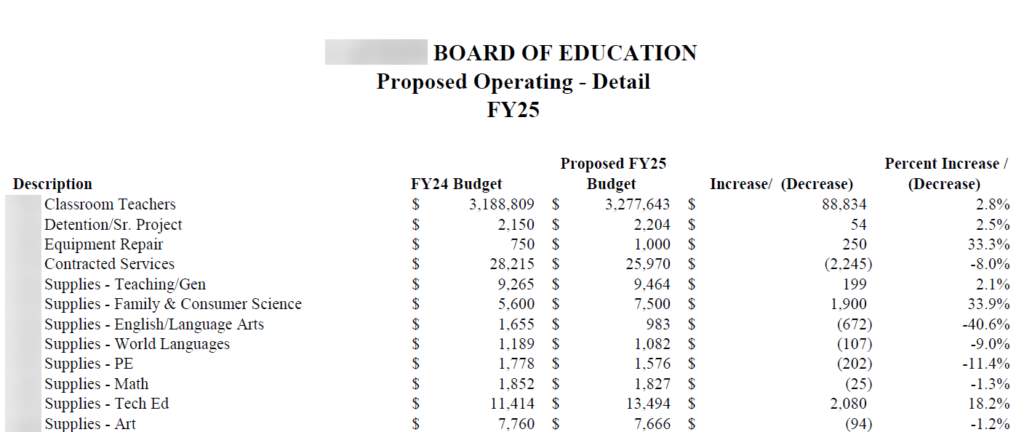
True story, the town I live in recently had some issues around the town budget. As I started to get involved I wanted to look at the data provided by our Board of Finance. To my misfortune, I found myself trying to analyze data in a PDF. Trying to do any sort of analysis on it was time consuming and frustrating. To make the data useful I needed to extract data from PDF and into something more flexible, in this case a simple CSV will do. Here is a sample of what we are working with:
Tooling
For this project we are going to use Pandas and Tabula. I also want to note I am using Python 3.12.2 for this project. To get Tabula up and running you will need to have Java 8+ installed as well. From there its fairly straight forward.
pip install pandas
pip install tabula-py
Setup
First we are going to create a function that uses Tabula to extract data from our source PDF. I was pleasantly surprised by how simple this is to implement. Behold the ease of use:
def extract_tables_from_pages(pdf_path,page):
	# Extract table from specified page
	tables = tabula.read_pdf(pdf_path, pages=page, multiple_tables=True)

  # Check if result is empty
	if not tables:
	  return None

	# Concatenate all tables from the specified pages into one DataFrame
	df = pd.concat(tables, ignore_index=True)

	return df
Now that we have our function to extract data lets handle the rest of the groundwork:
Create an empty file with our headers
Set the page range for the PDF that our data is in
Initialize and empty data frame
# Create file with headers
headers = ['Description', 'FY24Budget', 'FY25Budget', 'Change', 'ChangePercent']
df = pd.DataFrame(columns=headers)
csv_file_path = 'budget_data.csv'
df.to_csv(csv_file_path, index=False)

# Set page range
start_page = 93
end_page = 98

# Initialize an empty DataFrame
df = pd.DataFrame()
With that out of the way lets put it to us:
Call the function we created earlier, load the data into a data frame and add the proper column headers to it
The PDF sample has a bunch of summary rows on the last page of data so we check if its the last page and remove those rows if it is
Since this PDF has a bunch of white space in it Tabula returns several columns that are meaningless, we need to drop all of those
The last modification we need to make is removing whitespace from columns with data we need
In the end we write the data frame to a CSV and we are all set
pdf_path = 'C:\\Board_of_Finance_Budget.pdf'

for page in range(start_page, end_page + 1):
  # Extract tables from the specified range of pages
  df = extract_tables_from_pages(pdf_path, page)
  new_row = pd.DataFrame([df.columns], columns=df.columns)
  df = pd.concat([new_row, df]).reset_index(drop=True)

  # Remove last 6 rows if last page
  if page == end_page:
      df = df.iloc[:-6]

  # Drop 2nd column
  df.drop(df.columns[1], axis=1, inplace=True)
  # Drop 3rd column
  df.drop(df.columns[2], axis=1, inplace=True)
  # Drop 4th column
  df.drop(df.columns[3], axis=1, inplace=True)
  # Remove space characters in the 2nd column
  df.iloc[:, 1] = df.iloc[:, 1].astype(str).str.replace(' ', '')
  # Remove space characters in the 3rd column
  df.iloc[:, 2] = df.iloc[:, 2].astype(str).str.replace(' ', '')

  if df is not None:
      # Print the DataFrame
      print(df)

      # Save the DataFrame to CSV
      df.to_csv(csv_file_path, mode='a', index=False, header=False)
      print(f"DataFrame saved to {csv_file_path}")
  else:
      print(f'No table found on page {page}')
Wrapping Up
With a small amount of effort we were able to extract several pages of detail data from a PDF and write it out to a CSV. I am very excited about the flexibility Tabula has brought to the table. For your needs you may be able to get away with less transformation than I had to do. I found in my research if a table in a PDF has lines outlining its columns the extraction is much easier. Let me know in the comments how you plan to use Tabula to extract data.